How to add automatic captions to a video, including Urdu and Hindi
Most people watch social videos with the sound off. Captions keep them watching, make your video accessible to deaf and hard-of-hearing viewers, and help viewers who speak a different language follow along. This guide shows how to generate captions automatically, fix the mistakes AI always makes, and style them so they are easy to read on a phone.
Why captions matter
Platforms such as Facebook, Instagram and TikTok start videos muted in the feed. If the first seconds don't make sense without sound, viewers scroll on. Captions also help in noisy places (a bus, an office) and in quiet ones (late at night, a hospital waiting room). And they make your video usable for people who can't hear it at all, which is simply the right thing to do.
There is a practical benefit for creators who speak Urdu, Hindi or Punjabi too: many of your viewers read Roman Urdu or English more comfortably than they listen to fast speech, and captions let you reach both groups with one video.
How the automatic captions work
Lumnexvideoeditor uses Whisper, an open speech-recognition model, running inside your browser. Your audio is never uploaded to a server. The editor mixes the sound on your timeline, converts it to the format the model expects and turns it into text with start and end times. Each sentence becomes a separate text clip on a new Captions track above your video.
Because everything runs on your device, the speed depends on your computer. On a typical laptop, a one-minute video takes somewhere between a few seconds and a minute after the model has downloaded. Phones work, but are slower. Captions work for videos up to 30 minutes long; for longer recordings, split the project into parts.
Step by step
- Import and place your video. Open the editor, drop your file onto Import media and click it to place it on the timeline.
- Silence anything that isn't speech. Background music confuses speech recognition. If music is on its own audio track, click the track's mute button while you generate, then unmute it afterwards.
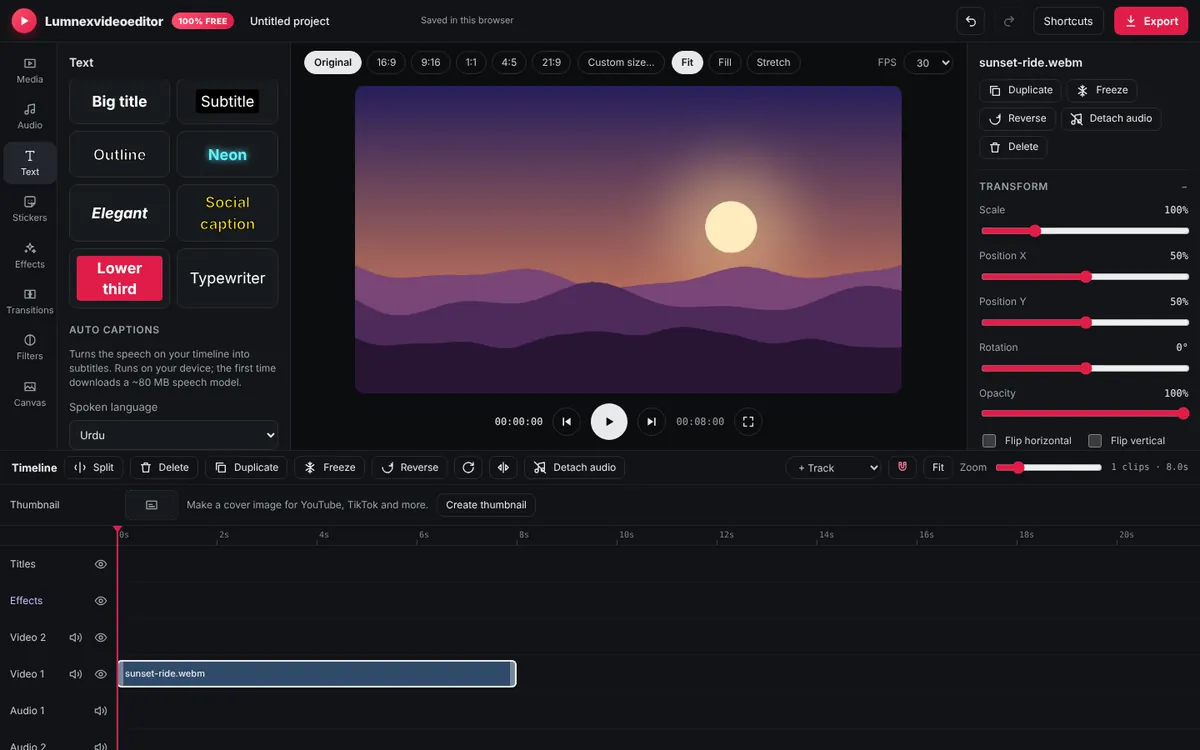
- Pick the language. Open the Text tab and scroll to Auto captions. The Spoken language list includes English, Urdu, Hindi, Arabic, Punjabi, Spanish, French, German, Portuguese, Turkish, Indonesian and Russian. Choosing the language yourself is more accurate than Detect automatically, especially for short clips.
- Click Generate captions. The progress shows at the top of the editor. The first run downloads the model (about 80 MB), so use Wi-Fi.
- Review every line. Play the video and read along. Click a caption to edit its text in the Inspector on the right; drag its edges on the timeline to change when it appears.
Urdu, Hindi and Roman Urdu: what to expect
Spoken Urdu and Hindi sound almost identical in everyday conversation. The model writes Urdu in Urdu script (نستعلیق-style Arabic letters) and Hindi in Devanagari. Pick the script your audience reads:
- Urdu script: choose Urdu. Check that your chosen caption font displays Urdu correctly in the preview; the default fonts fall back to your system's Urdu font.
- Devanagari: choose Hindi.
- Roman Urdu (Urdu in English letters, the way most people text): there is no automatic option for this yet. A quick approach is to generate in English or Urdu to get the timings, then retype each line in Roman Urdu. The timings are the slow part, so this still saves most of the work.
Accuracy is lower for strong regional accents, mixed Urdu-English sentences and people talking over each other. Plan to spend a few minutes correcting names, brand names and technical words in every video.
Styling captions so people can read them
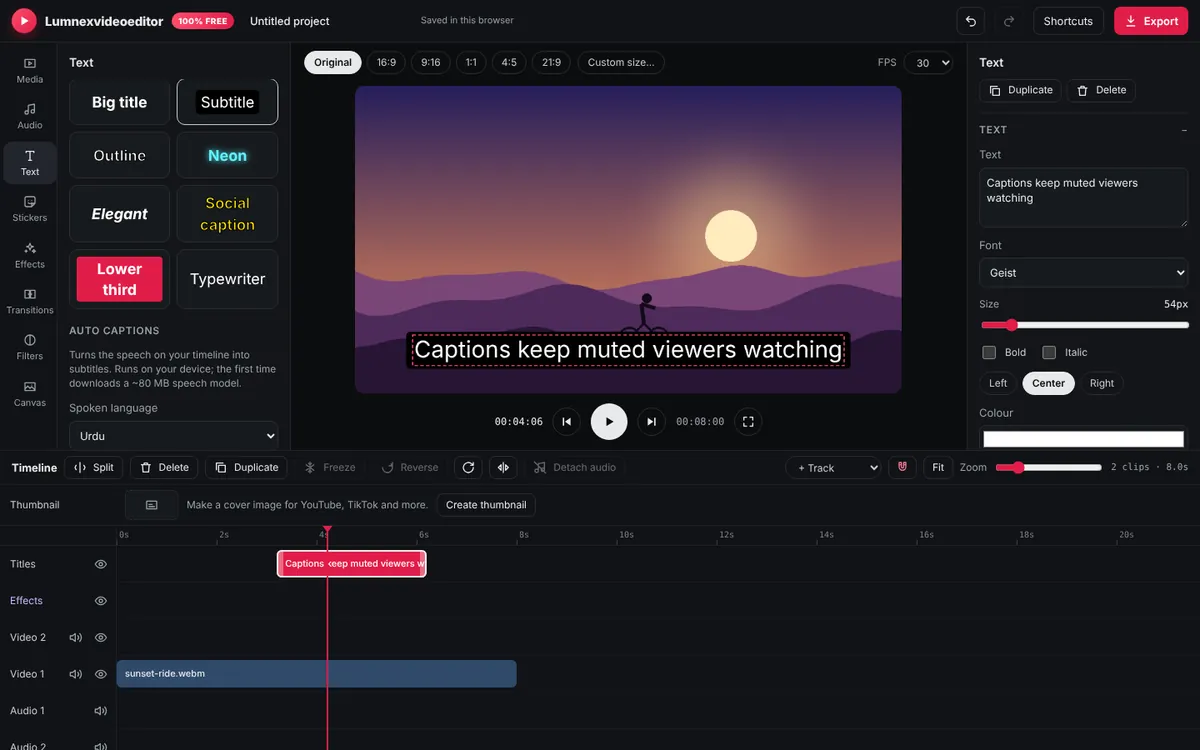
Generated captions use bold white text on a black box near the bottom of the frame, which is readable on any background. To change all of them at once, edit one caption, then copy its look to the others by selecting each and adjusting the same settings. Good defaults for social video:
- Size: 48–64 px on a 1080-pixel-wide video. Small captions are unreadable on phones.
- Two lines at most. The editor wraps long sentences automatically at around 42 characters. Split very long captions into two clips.
- Keep them out of the app buttons. On TikTok, Reels and Shorts, the bottom 15–20% of the screen is covered by the caption and buttons. Move captions up to about 70–75% of the height using Position Y. Our video sizes guide explains safe zones.
- Contrast first, style second. Coloured or animated captions look great, but only if they are still readable on a bright background. An outline or box solves most problems.
Burned-in captions vs. subtitle files
Lumnexvideoeditor burns captions into the video picture. That is the right choice for TikTok, Reels, Shorts, Facebook and Snapchat, where uploaded subtitle files are either unsupported or hidden by default. For long YouTube videos, YouTube's own subtitle feature (which viewers can switch on and off and auto-translate) is a good complement: you can paste your corrected caption text into YouTube Studio.
Troubleshooting
- "No speech was recognised": the sound may be very quiet or music-heavy. Try the noise reduction tool first, or raise the clip's volume.
- Wrong language in the output: choose the language manually instead of Detect automatically.
- Captions stop part-way: long silences can end a segment. Generate again, or add the missing line with the Text tab.
- It's slow on my phone: speech recognition is heavy work. Use a computer for videos longer than a few minutes.
Frequently asked questions
Are the automatic captions free?
Yes. Captions are generated on your own device, so there is no per-minute cost, no limit on how often you use it and no watermark.
Does Lumnexvideoeditor support Urdu captions?
Yes. Choose Urdu as the spoken language and the captions are written in Urdu script. Hindi produces Devanagari. Roman Urdu has to be typed by hand, but you can keep the automatic timings.
Is my video uploaded to make the captions?
No. The speech model is downloaded to your browser and runs there. Your audio never leaves your device.
Try it now
Lumnexvideoeditor is 100% free, needs no account and never adds a watermark. Your videos stay on your device.