How to add an AI voice to a video with text to speech
Not everyone wants to record their own voice, and sometimes you can't: you are in a noisy place, you are shy, or you need a voice in a language you don't speak. Text to speech turns a typed script into narration. Here is how to use it, how to make it sound less robotic, and when a real voice is still the better choice.
Two ways to use text to speech
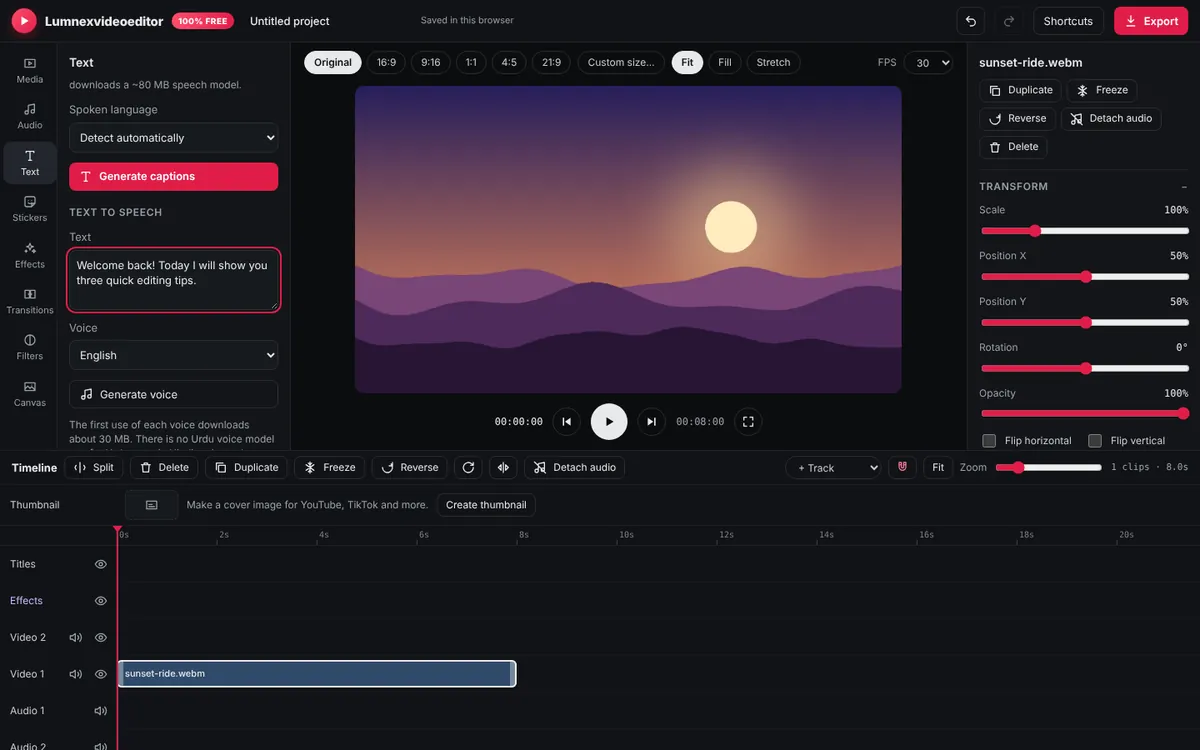
- From the Text tab: type or paste any script under Text to speech and click Generate voice. Use this for narration.
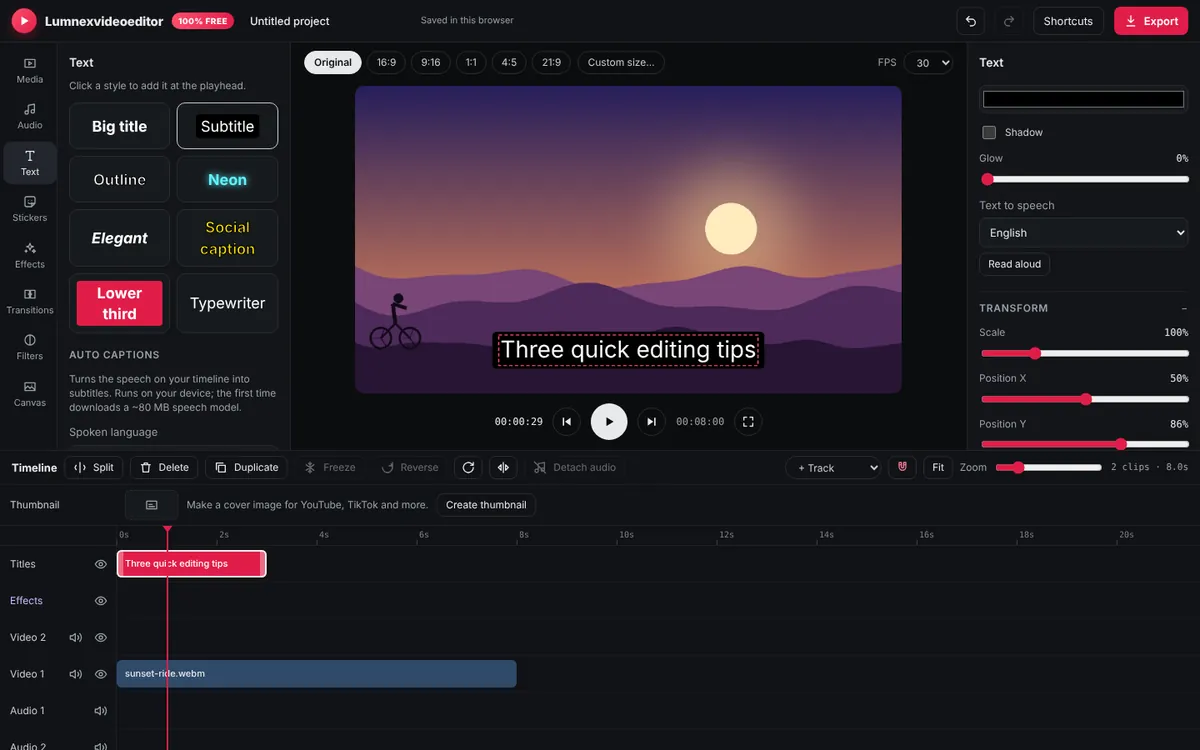
- From a text clip: select a title or caption on the timeline and click Read aloud in the Inspector. The voice reads exactly that text and is placed at the same time. This is perfect for list videos and "reading" text on screen.
The voices run on your device using open speech models, so your script isn't sent to any server and there are no character limits per month. Each request can be up to 1,000 characters; for a longer script, generate it in parts.
The voice, and why its licence matters
Lumnexvideoeditor's AI voice is English, generated by Microsoft SpeechT5, an open model released under the MIT licence. That licence allows commercial use, so you can use the voice in monetised YouTube videos, sponsored posts and ads.
This matters more than it sounds. Some free AI voices online are released for non-commercial use only, which means they shouldn't be used in videos that earn money. We previously offered voices in more languages from such a model, and replaced them with SpeechT5 so every voice you make here is safe to monetise.
Urdu, Hindi and other languages: there isn't a free, commercially licensed browser voice for these languages yet. For now, record your own voice-over (see how to add a voice-over) and add automatic captions in Urdu or Hindi, which work very well.
Writing a script that sounds natural
AI voices read exactly what you write, so the script does most of the work:
- Short sentences. One idea per sentence. Long sentences with many commas sound flat and breathless.
- Write numbers as words when the pronunciation matters: "two thousand twenty-six" rather than "2026", "fifty percent" rather than "50%".
- Spell out abbreviations or write them the way they are said: "Y-T" or "YouTube", not "YT".
- Use punctuation for pauses. A full stop gives a clear pause; a comma a short one. Break a long paragraph into separate generations to control the pauses between them precisely.
- Read it aloud yourself first. If you stumble, the AI voice will sound awkward there too.
Fitting the voice to your video
- Place your clips first, so you know how long each shot is.
- Generate one sentence or paragraph at a time, with the playhead at the shot it belongs to.
- If a sentence is longer than its shot, either trim the shot less, shorten the sentence, or extend the shot with a slower speed.
- Leave about half a second of silence between sections. Wall-to-wall talking is tiring.
- Add music on the second audio track at a low volume (15–25%), with a fade in and fade out.
Then add automatic captions: the AI voice is clear and consistent, so captions generated from it are very accurate.
Making it sound less robotic
- Music hides a lot. A soft background track makes synthetic voices feel more natural.
- Vary the pace by generating sentences separately and adjusting the gaps between them.
- Change the speed slightly. Select the voice clip and set Speed to 1.05–1.1× for a livelier read, or 0.95× for a calmer one. Larger changes affect the pitch.
- Normalise it. Use Clean up audio with Normalise loudness on to match the level of your other sound.
Being honest with your audience
AI voices are fine for tutorials, lists, product demos and explainer videos. A few things to keep in mind:
- Never use text to speech to imitate a real person or make it seem someone said something they didn't.
- YouTube asks creators to disclose realistic altered or synthetic content in some cases; a synthetic narrator reading your own script is generally fine, but check YouTube's current rules for your type of video.
- Channels built entirely on mass-produced, repetitive AI narration may not qualify for monetisation. Your own ideas, research and editing are what make a video valuable.
For personal stories, vlogs and anything emotional, your own voice still connects better. See how to record a voice-over.
Frequently asked questions
Is the text to speech free?
Yes. The voices run on your own device, so there are no monthly limits, no account and no watermark.
Is there an Urdu AI voice?
Not yet. There is no free, commercially licensed Urdu voice that runs in the browser. Record your own voice-over and add automatic Urdu captions instead.
Can I use the AI voice on monetised YouTube videos?
Yes. The voice model (Microsoft SpeechT5) is MIT-licensed, which allows commercial use. Follow YouTube's current policies on synthetic and reused content.
Try it now
Lumnexvideoeditor is 100% free, needs no account and never adds a watermark. Your videos stay on your device.