How to remove background noise from a video
Viewers forgive average video quality, but they click away from bad sound. Fan hum, traffic, air conditioners and the hiss of a cheap microphone make even good content tiring to watch. This guide shows how to clean up audio in your browser, what the settings do, and how to record cleaner sound in the first place.
What kind of noise can be removed?
Noise reduction works best on steady background sound: hum from a fan, fridge or air conditioner; electrical buzz; microphone hiss; distant traffic; rain on a window. These sounds stay roughly the same over time, so the tool can learn what they sound like and remove them while keeping your voice.
It works less well on sudden or changing sounds: a dog barking, a door slamming, people talking nearby, music in the background. Those overlap with speech in the same frequencies. For a single loud event, it is usually easier to split the clip and lower the volume of that moment, or cover it with music.
How it works
Lumnexvideoeditor uses spectral gating. It splits the sound into many narrow frequency bands, measures the quietest level in each band (the noise floor), and turns down anything that stays near that floor while letting louder sound (your voice) through. It doesn't remove the noise completely, on purpose: removing every bit makes speech sound "underwater" and robotic. All processing happens on your device; the audio is never uploaded.
Step by step
- Select the noisy clip. Open the editor, place your video on the timeline and click it.
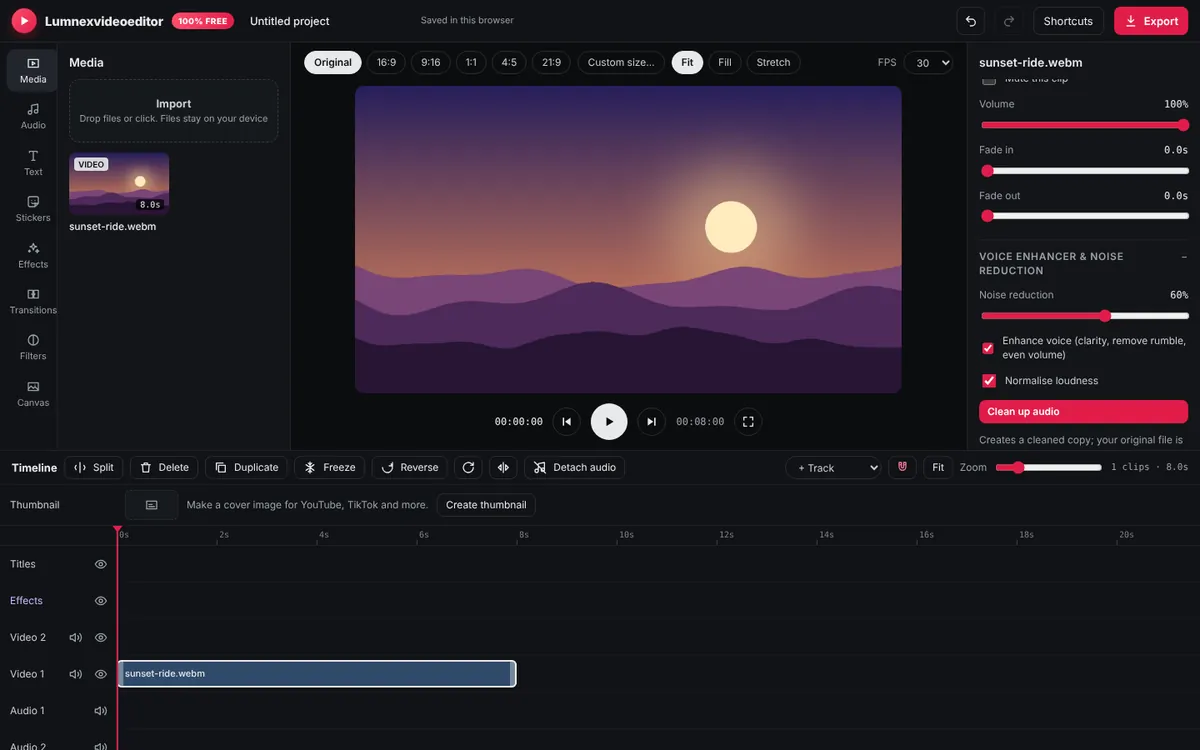
- Open Voice enhancer & noise reduction in the Inspector on the right.
- Set Noise reduction. 60% is a good start. Use 30–50% for light hiss and 70–90% for loud fans or traffic.
- Choose the extras. Enhance voice removes low rumble, adds a little clarity and evens out loud and quiet words. Normalise loudness sets a consistent overall level so viewers don't have to change their volume.
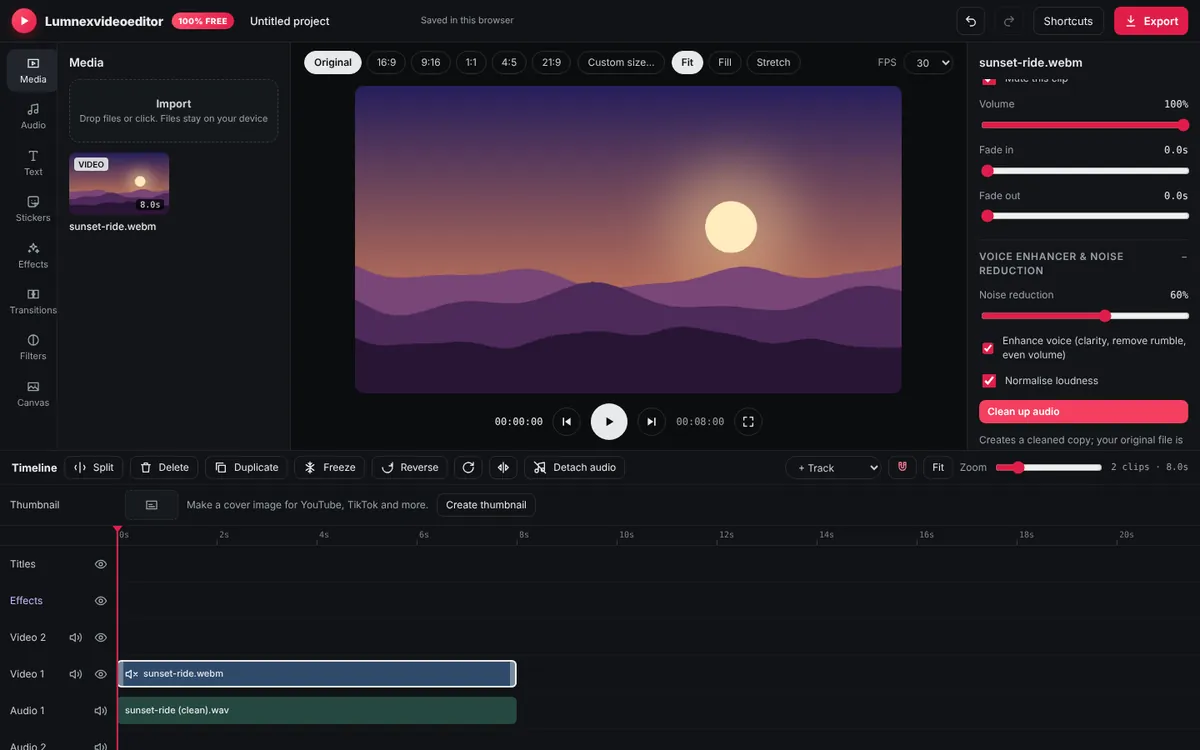
- Apply. Click the Clean up audio button. The editor processes the clip and shows progress at the top. For a video clip, the cleaned sound appears on an audio track lined up with the video, and the video's own sound is muted.
- Compare. Unmute the video and mute the new audio track to hear the difference. If it's too strong, press Ctrl+Z, lower Noise reduction and try again.
Clean up works on up to 10 minutes of sound at a time. For longer recordings, split the clip into sections and clean each one.
Choosing the right strength
Listen with headphones. Signs of too much noise reduction are a swirly or metallic sound on the voice, quiet words disappearing, and "breathing" where the background fades in and out between words. Signs of too little are that you can still clearly hear the hum under speech. The best setting is usually the lowest one that makes the background stop being distracting; a little remaining room tone sounds natural.
Fixing other audio problems
- Voice too quiet compared to music: lower the music clip's Volume to 15–25% rather than raising the voice.
- Clicks at cut points: add a short Fade in and Fade out (0.1–0.3 seconds) to each audio clip.
- One loud noise: split just before and after it and lower that piece's Volume, or replace it with a sound effect.
- Room echo: noise reduction helps a little, but echo is mostly fixed at recording time (see below).
- Distorted, crackly sound: this is clipping, caused by recording too loud. It can't be repaired; re-record with the microphone further away or the input level lower.
Record cleaner audio next time
Cleaning helps, but nothing beats a clean recording. These cost nothing:
- Turn off fans, ACs and fridges for the few minutes you're recording.
- Get closer to the microphone. A phone held 20–30 cm from your mouth sounds far better than one across the room. Your voice gets louder while the room stays the same.
- Record in a soft room. Curtains, carpets, beds and sofas absorb echo. A wardrobe full of clothes makes a surprisingly good voice booth.
- Use the earphone microphone that came with your phone for voice-overs; clipped close to your mouth, it beats the phone's built-in mic.
- Record 5 seconds of silence at the start. It gives you a clean gap to trim, and tells you how noisy the room is before you start talking.
For narration recorded after filming, see how to add a voice-over.
Frequently asked questions
Can I remove background noise from a video for free?
Yes. Lumnexvideoeditor has free noise reduction and voice enhancement that run in your browser, with no upload and no watermark.
Will noise reduction remove music or talking in the background?
Only partly. It works best on steady noise such as fans, hum, hiss and traffic. Music and other voices overlap with speech and are hard to remove.
Why does my voice sound robotic after noise removal?
The noise reduction is too strong. Undo, lower the Noise reduction setting and apply it again.
Try it now
Lumnexvideoeditor is 100% free, needs no account and never adds a watermark. Your videos stay on your device.