How to colour grade a video: filters, adjustments and LUTs
Colour changes how a video feels. The same clip can look warm and nostalgic, cold and tense, or bright and energetic. Colour grading is how editors control that. This guide covers the two stages, correcting then styling, using filters, manual adjustments and LUTs in a free browser editor.
Correction vs. grading
Colour correction makes footage look natural: right exposure, white things look white, skin looks like skin. Colour grading is the creative step on top: a warm sunset look, a teal-and-orange film look, faded vintage. Always correct first. A stylish filter on an underexposed, blue-tinted clip just looks like a stylish mistake.
Step 1: correct with the Adjust sliders
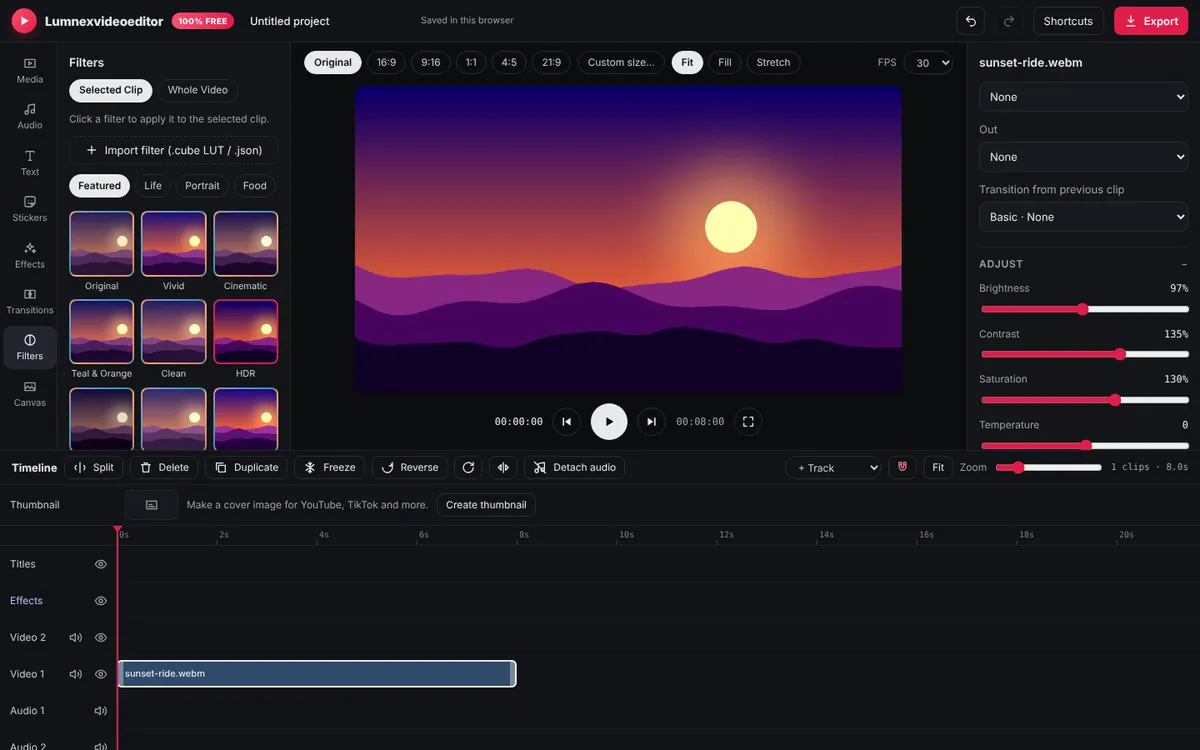
Select a clip and open Adjust in the Inspector. Work in this order:
- Brightness: raise underexposed (dark) clips until faces and the main subject are clearly visible. Don't push it until the sky turns pure white.
- Contrast: add a little (105–115%) to flat, grey-looking phone footage. Lower it for harsh midday light.
- Temperature: if white walls or paper look blue, move it toward warm; if they look orange (indoor bulbs), move it toward cool.
- Tint: fixes a green or magenta cast, common under fluorescent tubes.
- Saturation and Vibrance: Saturation boosts all colours equally; Vibrance boosts the dull ones more and protects skin tones. Prefer Vibrance for people.
Look at skin tones while you work. If faces look natural, the clip is close to right.
Step 2: match your clips
Phone and camera clips, or shots from different times of day, rarely match. Play across each cut: does the colour jump? Adjust the odd one out until the change is invisible. Matching matters more than any filter; a consistent video looks professional even with simple colours.
Step 3: apply a look with filters
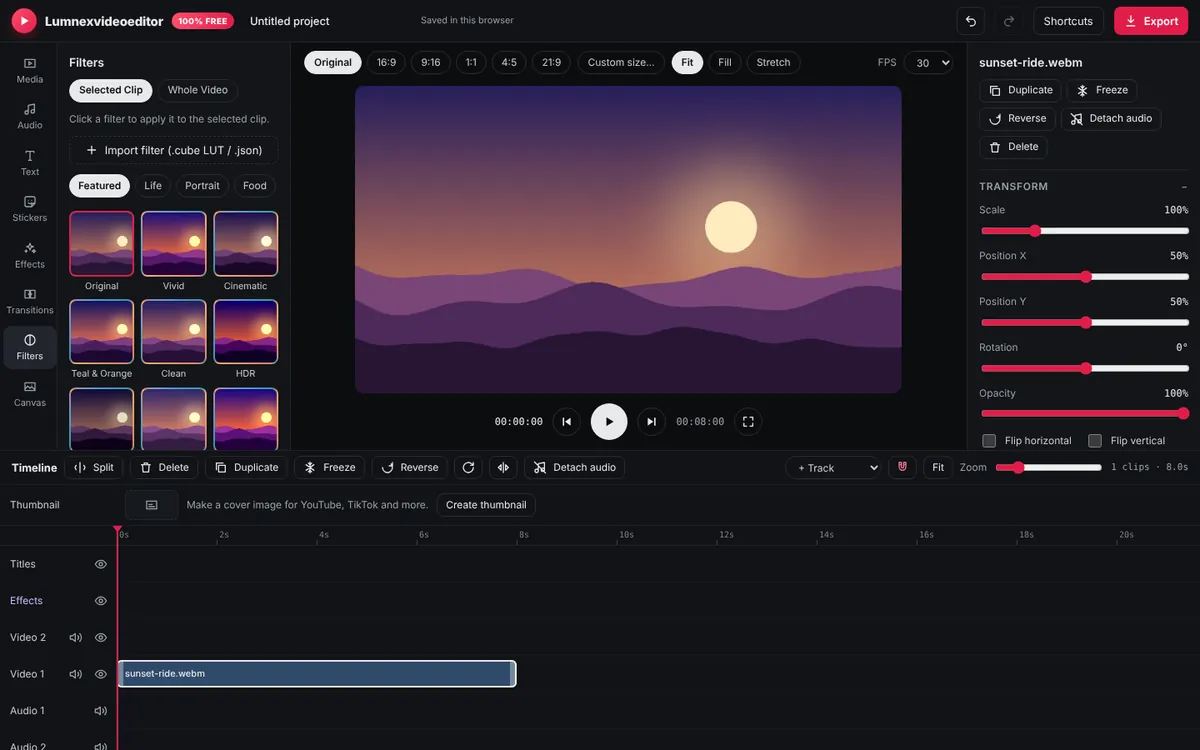
The Filters tab has 60 filters grouped by style, each with a live preview of your own footage. Click one to apply it. Choose Selected clip to grade one clip, or Whole video to put the filter on the Effects track over everything, the fastest way to give a whole edit one consistent look. Then lower the filter's strength. Most filters look best at 40–70%; full strength is usually too much.
| Mood | Look for |
|---|---|
| Warm, happy, family, food | Warm and golden filters; add a little Vibrance |
| Cinematic, dramatic | Teal-orange and film filters; add Cinema bars and a light Vignette |
| Nostalgic, memories | Vintage and faded filters; add Film grain and Fade |
| Clean product or tech | Cool, bright, low-saturation filters |
| Moody travel | Desaturated, darker filters with lower brightness |
Step 4: LUTs for exact, repeatable looks
A LUT (look-up table) is a file that maps every input colour to an output colour. Colourists and camera makers share looks as .cube files. Many cameras that record in flat "log" profiles also provide an official LUT to convert that footage to normal colour.
- In the Filters tab, click Import filter (.cube LUT / .json) and choose a
.cubefile. - Select a clip; in the Inspector, pick it under Imported LUT.
- Set LUT strength. Creative LUTs usually look best between 50% and 80%.
Imported LUTs are stored in your browser, so they stay available in future projects. Use LUTs only from sources whose licence allows it; plenty of creators and camera brands offer free ones.
If you shot in a log profile, apply the camera's conversion LUT first at 100%, correct with the sliders, and only then add a creative look on the Effects track.
Step 5: save your own filter
Once a clip looks right, click Save as my filter. Your combination of adjustments becomes a filter you can apply in one click to other clips and future projects. Building a few personal looks is how creators get a recognisable style.
Finishing touches
- Vignette (10–25%) gently darkens the edges and draws the eye to the centre.
- Film grain (10–20%) adds texture and hides banding in skies.
- Cinema bars give a widescreen film feel on 16:9 videos. Don't use them on vertical video.
Common mistakes
- Orange or grey skin from heavy teal-orange or desaturated looks. Lower the strength.
- Grading on a too-bright screen. Turn your screen brightness to about 70% and check on a phone too.
- Different looks on every clip. Pick one look per video.
Frequently asked questions
Can I import LUTs into a free online video editor?
Yes. Lumnexvideoeditor imports .cube LUT files, applies them with an adjustable strength and keeps them in your browser for future projects.
How many filters does Lumnexvideoeditor have?
It has 60 colour filters with live previews, plus manual adjustments and the option to save your own filters.
What is the difference between colour correction and colour grading?
Correction makes footage look natural and consistent. Grading is the creative look applied on top, such as warm, cinematic or vintage.
Try it now
Lumnexvideoeditor is 100% free, needs no account and never adds a watermark. Your videos stay on your device.