How to make a photo slideshow with music
A slideshow is the easiest video you can make, and one of the most watched: birthdays, weddings, trips, product showcases, memorials. The difference between a dull one and a moving one is timing, motion and music. Here is how to make a good one in about fifteen minutes.
Plan before you import
Pick your photos first, then put them in order in a folder: by date, or as a story (arrival, the best moments, the goodbye). 20–40 photos make a two to three-minute video, which is about as long as most people will happily watch. Choose fewer, better photos rather than every photo you have: blurry and near-duplicate shots slow a slideshow down.
Decide where it will be shown. For a TV, laptop or YouTube, use 16:9. For Instagram Reels, TikTok, YouTube Shorts or WhatsApp Status, use 9:16. Phones take vertical photos and cameras take horizontal ones; mixed shapes are fine, and you'll see how to handle them below.
Step 1: set the canvas
Open the editor and go to the Canvas tab. Click 16:9 or 9:16. For photos that don't match the shape, choose a background now: Blurred copy of your video fills the empty sides with a soft, blurred version of the photo, which looks far better than black bars. Gradients and plain colours work well for birthday or product slideshows.
Step 2: import and place photos
Drop all your photos (JPG, PNG or WebP) and your music onto Import media. Then click the photos one by one, in order; each one is added at the end of the previous clip. Every photo lasts 5 seconds to start with.
For each photo, choose how it fills the frame in the Inspector: Fit shows the whole photo with your background around it, and Fill crops it to fill the screen. Use Fill for landscapes and Fit for group photos, where cropping might cut someone out.
Step 3: add music and set the rhythm
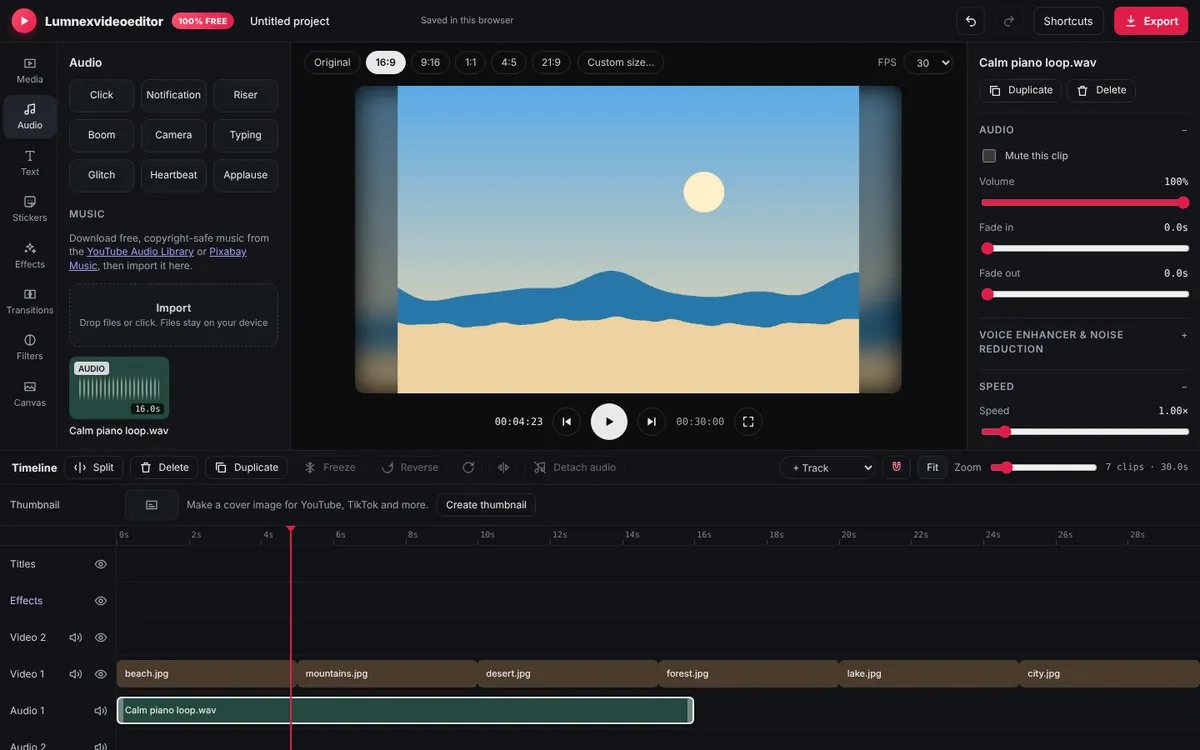
Click your music file in the Audio tab to put it on an audio track. Now the pace:
- Calm music (weddings, memorials): 4–6 seconds per photo, with dissolves.
- Upbeat music (birthdays, trips): 2–3 seconds per photo, with slides or zooms, or straight cuts.
- Reels and TikTok: 0.5–1.5 seconds per photo, cutting on the beat.
To cut on the beat, play the music and watch where the drum hits fall in the waveform on the timeline, then drag each photo's edge to meet a beat. Snapping helps clips line up neatly. When the slideshow ends before the song does, move the playhead to the end of the last photo, select the music clip, press S to split it and delete the rest. Then set a 2–3 second Fade out on the music so it doesn't stop abruptly.
Only use music you have the right to use. Platforms mute or block videos with copyrighted songs. The Audio tab links to the YouTube Audio Library and Pixabay Music, which have free tracks; on TikTok and Instagram you can also add a song from their own library when you post.
Step 4: add motion
Still photos feel more alive with slow movement. Select a photo, open Animation in the Inspector and choose an In animation such as a zoom or slide. A slight scale-up (set Scale to 105–110%) combined with a soft fade-in gives a gentle "Ken Burns" feel. Use the same motion for most photos so the video feels consistent, and save the dramatic ones for key moments.
Step 5: transitions
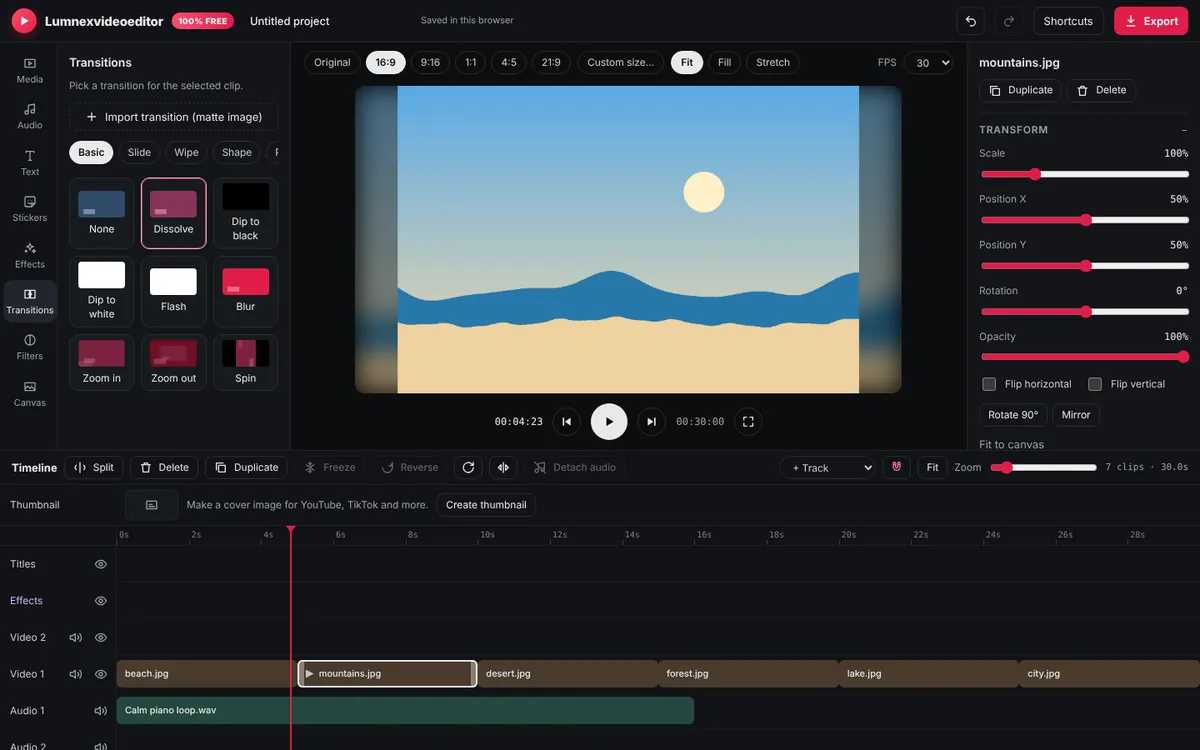
Select a photo and click a style in the Transitions tab; it plays as that photo comes in. Dissolve is the classic choice for slideshows. Change the length under Transition duration: 0.5–1 second for slow slideshows, 0.3 seconds for fast ones. Don't use a different transition for every photo; one or two styles look more professional. Our transitions guide explains which works where.
Step 6: titles and stickers
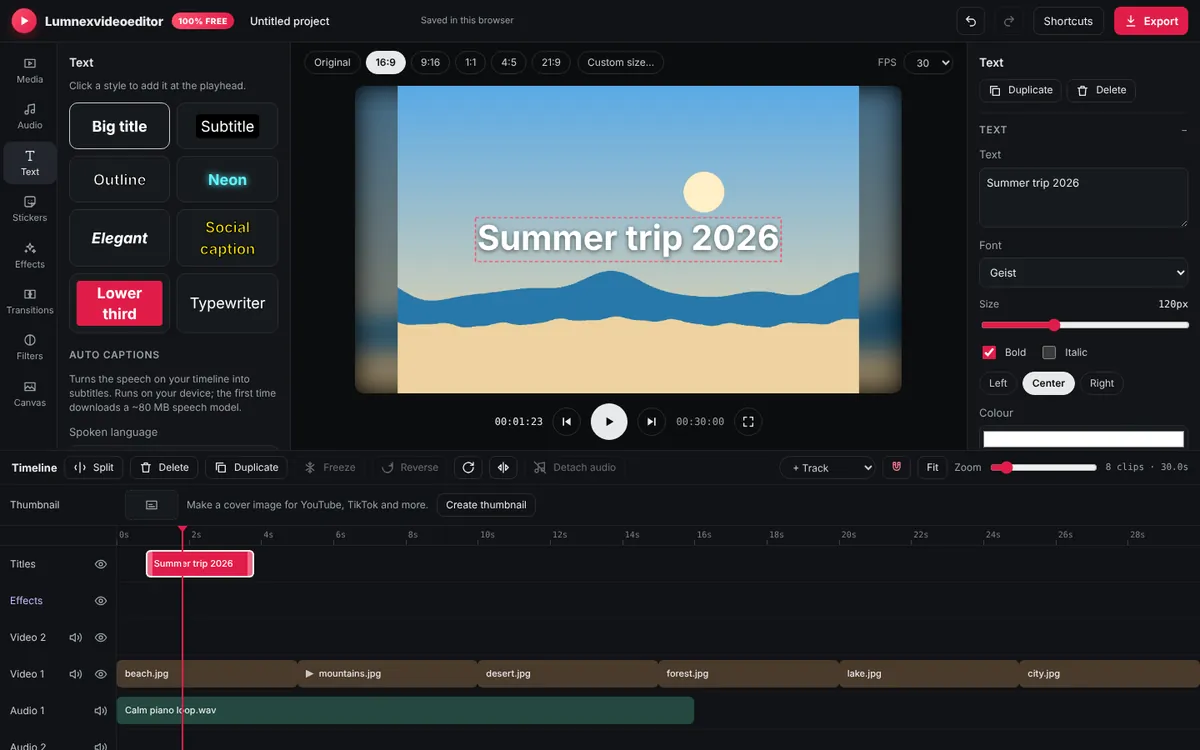
Add an opening title ("Ayesha's 30th", "Hunza 2026") from the Text tab, and drag it on the timeline so it sits over the first photo. Titles go on the Titles track, above your photos. For birthdays, the Stickers tab has hundreds of emojis (balloons, cakes, hearts) and you can import your own PNG stickers. End with a closing card: a final photo with a short message, or the date.
Step 7: colour and export
Photos from different phones often have different colours. Apply the same filter from the Filters tab to the whole video to tie them together; a warm filter suits weddings and family videos. Then click Export. A three-minute 1080p slideshow exports in a few minutes on most computers. Our colour grading guide goes deeper.
Common mistakes
- Too long. If it's over four minutes, cut the weakest photos.
- Music ending abruptly. Always fade out.
- Cropped faces. Check every group photo; switch it to Fit or move it.
- Unreadable text. Add an outline or a box behind titles on busy photos.
Frequently asked questions
Can I make a slideshow with music for free without a watermark?
Yes. Lumnexvideoeditor is completely free and never adds a watermark to your export.
How many photos can I use?
There is no fixed limit. Very large projects depend on your device memory; a few hundred photos work on a typical computer.
How long should each photo be shown?
About 4–6 seconds for calm music, 2–3 seconds for upbeat music, and under 1.5 seconds for Reels and TikTok.
Try it now
Lumnexvideoeditor is 100% free, needs no account and never adds a watermark. Your videos stay on your device.