How to speed ramp a video with speed curves
A speed ramp is when a clip speeds up and then slows down smoothly, rather than jumping between speeds. It is the effect behind most viral sports, travel, car and dance edits. This guide explains how speed ramps work, how to make one with the built-in presets or your own curve, and how to choose footage that ramps well.
Constant speed vs. speed curves
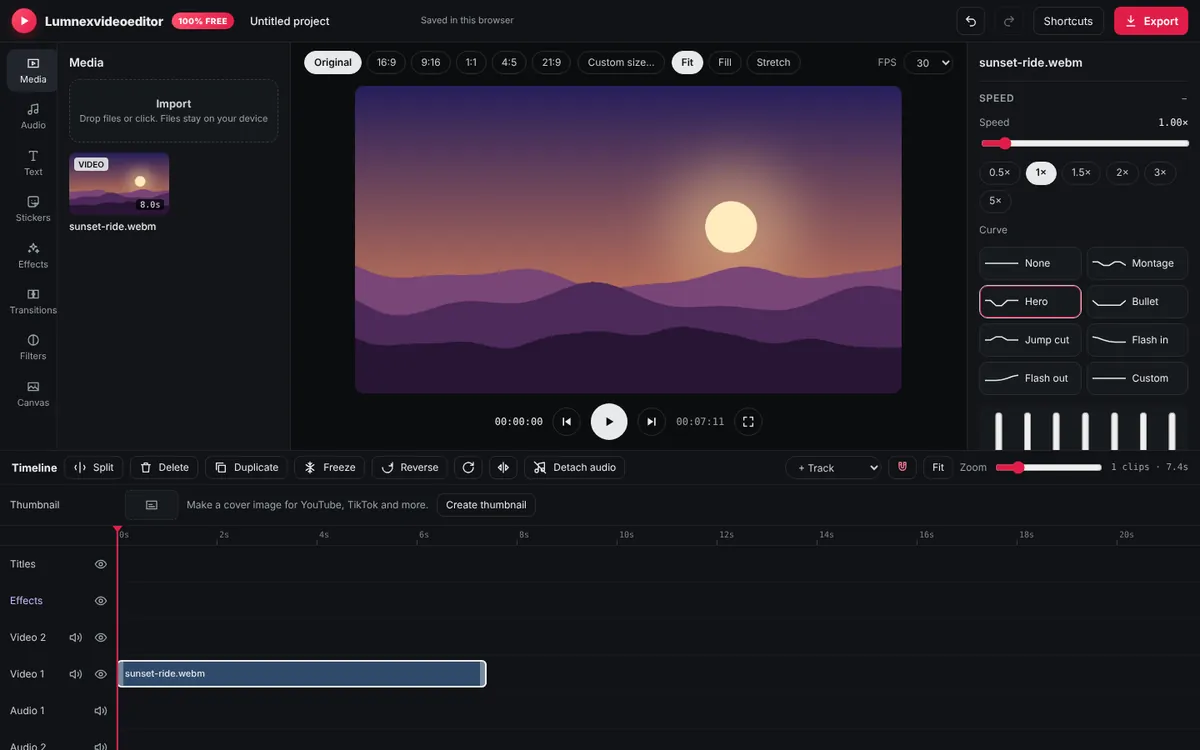
The Speed slider changes a whole clip by the same amount: 2× is twice as fast, 0.5× is half speed. That is useful for time-lapses and simple slow motion. A speed curve changes speed over the length of the clip: fast, then slow, then fast again. Because the change is gradual, the eye reads it as one dramatic movement, not a jump. That gradual change is what makes a "ramp".
The presets and when to use them
| Preset | What it does | Good for |
|---|---|---|
| Montage | Alternates fast and slow sections | Travel and lifestyle montages |
| Hero | Fast, then a deep slow-motion moment, then fast | The key moment: a goal, a jump, a reveal |
| Bullet | Quick start, long slow middle, quick end | Action and "bullet time" shots |
| Jump cut | Normal speed with a fast burst in the middle | Skipping boring parts of a movement |
| Flash in | Starts very fast and settles to slow | Opening a clip with energy |
| Flash out | Starts slow and accelerates | Ending a clip into a transition |
Step by step
- Pick the moment. Find the exact action you want to emphasise: a ball being kicked, a car passing, a dancer landing. Ramps work on 1–4 second moments.
- Split it out. Put the playhead just before the moment and press S, then just after and press S again. Now the moment is its own clip and the curve won't affect the rest.
- Apply a curve. Select the moment, open Speed in the Inspector and click a curve preset. The clip's length on the timeline changes, because slow sections take longer to play.
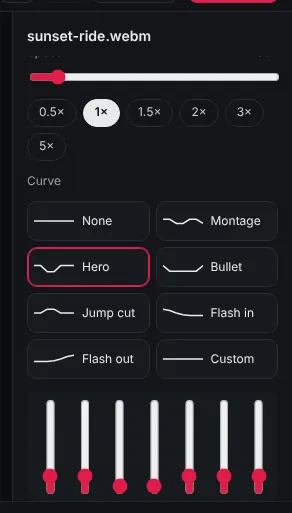
- Make it your own. Click Custom. Seven sliders appear, one for each point along the clip from start to end. Raise a slider to speed that part up, lower it to slow it down, and put the lowest point where the peak of the action happens.
- Watch it. Play the section several times. If the slow part feels stuck, raise the lowest point a little; if it doesn't feel dramatic enough, lower it and make the fast parts faster.
Split and freeze-frame both work correctly on curved clips, so you can keep editing afterwards.
Footage that ramps well
Slow motion needs frames. A clip filmed at 30 frames per second, slowed to 0.25×, only has about 7 real frames per second of output, so it looks jerky. For deep slow motion, film at 60 fps or higher (most phones offer 60 fps, and many offer 120 or 240 fps "slo-mo"). For footage filmed at 24 or 30 fps, keep the slowest point at around 0.5×.
Fast, clear movement across the frame ramps best: sports, vehicles, dancing, a camera moving past objects. Static talking-head footage doesn't benefit from ramps at all.
Syncing ramps to music
A ramp feels most powerful when the slowest moment lands on a strong beat or a drop. Place your music on an audio track first, then find the beat in the waveform and move the ramped clip so its slowest point lines up with it. A transition such as Zoom or a quick Flash effect from the Effects tab right at the change of speed adds extra punch. A whoosh from Sound effects in the Audio tab, placed where the clip speeds up, makes it feel even faster.
What happens to the sound?
In the exported video, the original sound speeds up and slows down with the picture, which changes its pitch (the preview keeps the original pitch while you edit). For most ramped edits that sounds odd, so the usual approach is to mute the clip (or turn its Volume to 0) and let music carry the edit. If you need the original sound, use Detach audio before ramping; the sound stays at normal speed on its own track.
Pro tips
- Less is more. One or two ramps in a 30-second edit feel special. Ramping every clip makes nothing stand out.
- Add motion blur feel at the fast sections with a touch of the Blur slider, or a Zoom blur effect, for a smoother look.
- Reverse for extra drama. Select a clip and click Reverse before ramping for a "rewind" moment.
- Freeze the peak. Use Freeze at the slowest point for a brief still frame, then let it continue.
Frequently asked questions
What is a speed ramp?
A speed ramp is a smooth change of playback speed within one clip, usually fast then slow then fast, used to emphasise a moment of action.
Does Lumnexvideoeditor have speed curves like CapCut?
Yes. It has Montage, Hero, Bullet, Jump cut, Flash in and Flash out presets, plus a Custom curve you can draw yourself. It is free and has no watermark.
Why is my slow motion jerky?
The footage does not have enough frames. Film at 60 fps or higher for deep slow motion, or keep the slowest speed at around 0.5× for 30 fps footage.
Try it now
Lumnexvideoeditor is 100% free, needs no account and never adds a watermark. Your videos stay on your device.