Best export settings for YouTube and YouTube Shorts
YouTube re-compresses every video you upload. If your file is too small or in an odd size, the result looks soft and blocky. If it is needlessly huge, the upload takes forever. Here are the settings that give the best result for both normal videos and Shorts, and why each one matters.
Quick answer
| Setting | Normal video | YouTube Short |
|---|---|---|
| Aspect ratio | 16:9 (landscape) | 9:16 (vertical) |
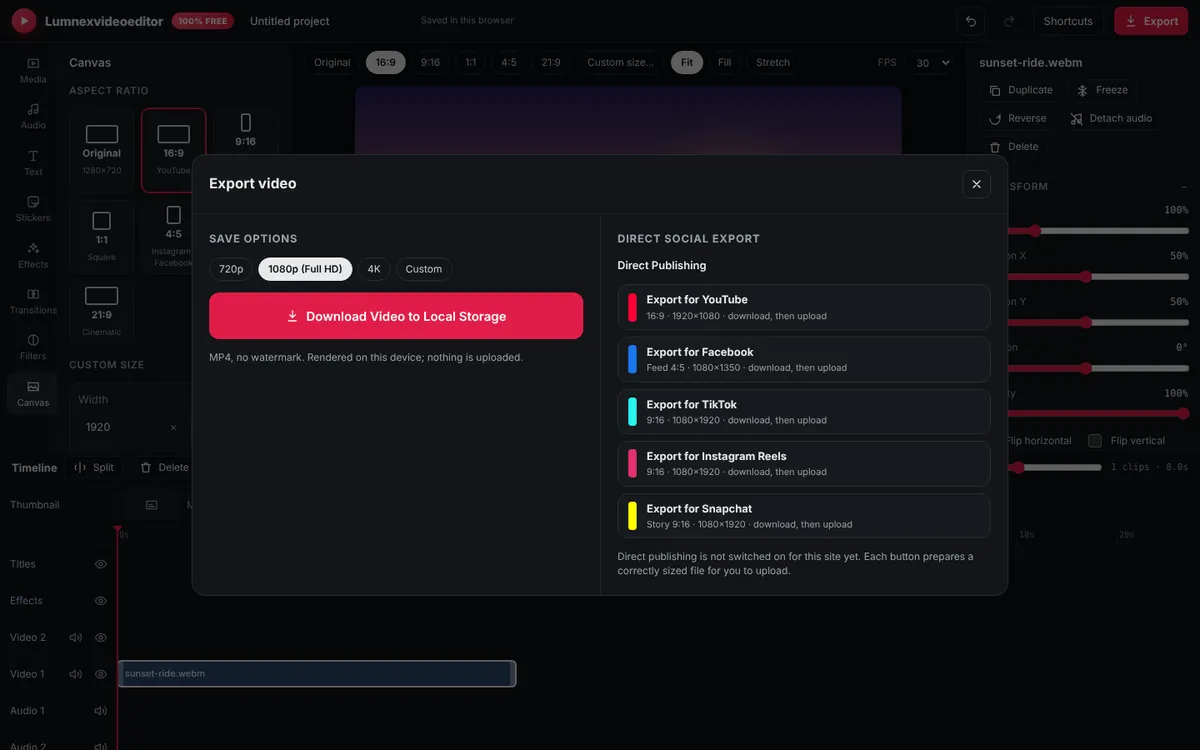
| Resolution | 1920×1080, or 3840×2160 for 4K footage | 1080×1920 |
| Frame rate | Same as recorded (24, 25, 30, 50 or 60) | Same as recorded |
| Format | MP4, H.264 video, AAC audio | MP4, H.264 video, AAC audio |
| Length | Any (longer than 15 minutes needs a verified account) | Up to 3 minutes |
YouTube changes its rules from time to time, so check YouTube Help if something looks different when you upload.
Resolution: why 1080p is the sweet spot
1080p (1920×1080) is what most viewers watch on phones and laptops, it uploads quickly, and every computer can export it. Export in 4K only when your footage was actually filmed in 4K. Upscaling 1080p footage to 4K doesn't add detail, though some creators do it because YouTube gives 4K uploads a higher-quality compression format; it's a trade between a better stream and a much longer export and upload.
Avoid 720p unless your source is 720p. A 720p upload looks noticeably softer on modern screens.
Aspect ratio: landscape vs. vertical
Normal YouTube videos should be 16:9. Vertical or square videos up to three minutes long are treated as Shorts. If you upload a vertical video longer than that, it becomes a normal video with black bars on both sides, so keep Shorts short.
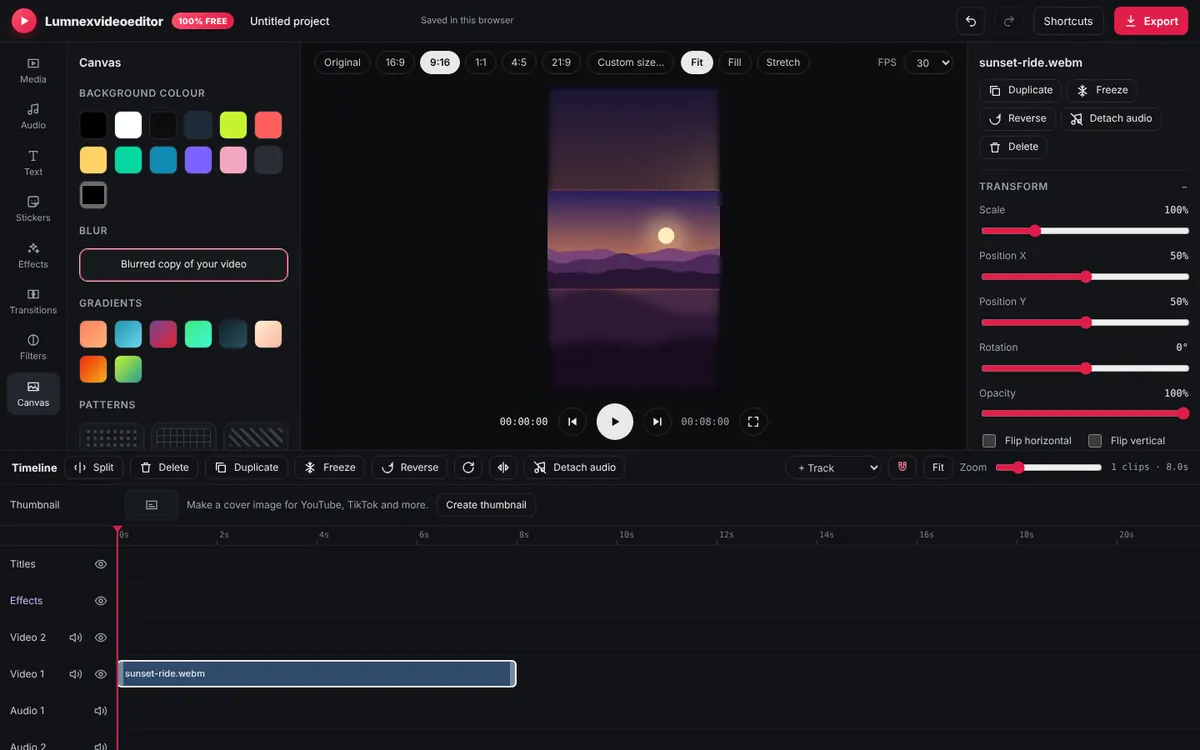
In Lumnexvideoeditor the canvas starts at your first clip's own size (Original). To change it, open the Canvas tab and pick 16:9 or 9:16, or type any size into Custom size. If your clip doesn't fill the new shape, select it and choose Fill to crop to the frame, Fit to show all of it with a background, or drag it to reframe. For the background behind a fitted clip, Blurred copy of your video looks far better than black bars.
Frame rate: keep what you filmed
Export at the same frame rate as your footage. Converting 30 fps to 60 fps doesn't make motion smoother; it just duplicates frames. Converting 60 to 30 is fine if you want smaller files, but gameplay and sports look best at 60. Mixing phone clips (often 30 fps) with gameplay (60 fps) in one project is fine; set the project to the higher rate.
Quality and file size
The editor picks the bitrate for you based on size and frame rate: roughly 12 Mbps for 1080p at 30 fps, doubling at 60 fps, and capped at 50 Mbps for 4K. That is above what YouTube recommends for uploads, so your video arrives with detail to spare. A one-minute 1080p video is about 90–100 MB. Audio is exported as AAC at 48 kHz stereo, which YouTube accepts directly.
If your browser can't encode H.264 (some Linux setups), the editor automatically falls back to VP9 video with Opus audio. YouTube accepts that too.
Shorts checklist
- Hook in the first second. Start on the most interesting moment; use a speed ramp or a bold title to grab attention.
- Keep text in the safe zone. The bottom fifth of a Short is covered by the title and buttons, and the right edge by the like and comment icons.
- Add captions. Many Shorts viewers have the sound off.
- Loop it. Shorts replay automatically. An ending that flows back into the start increases watch time.
Long video checklist
- Make a custom thumbnail at 1280×720. See how to make a YouTube thumbnail.
- Balance your audio. Speech should be clear over music. Keep music at around 15–25% volume under speech.
- Use chapters. Add timestamps like
0:00 Introin your YouTube description; there's no need to edit chapter titles into the video.
Why does my video look worse on YouTube?
Right after upload, YouTube first shows a low-resolution version while it processes the HD and 4K versions. Wait 15–60 minutes before judging quality. If it still looks soft, check that the viewer's quality setting isn't on Auto at a low resolution, and that you exported at 1080p or above. Fast motion, confetti, water and fine grain are the hardest things to compress; they always look a little worse online than in your file.
Frequently asked questions
What resolution should I export for YouTube?
1920×1080 (1080p) for most videos, or 3840×2160 (4K) when your footage was filmed in 4K. Use 1080×1920 for Shorts.
What frame rate is best for YouTube?
The frame rate you recorded in. Common choices are 24, 30 and 60 fps. Converting to a higher frame rate does not make motion smoother.
How long can a YouTube Short be?
Up to three minutes, in a vertical or square format. Longer vertical videos are treated as normal videos.
Try it now
Lumnexvideoeditor is 100% free, needs no account and never adds a watermark. Your videos stay on your device.